

Popular Options and Variations
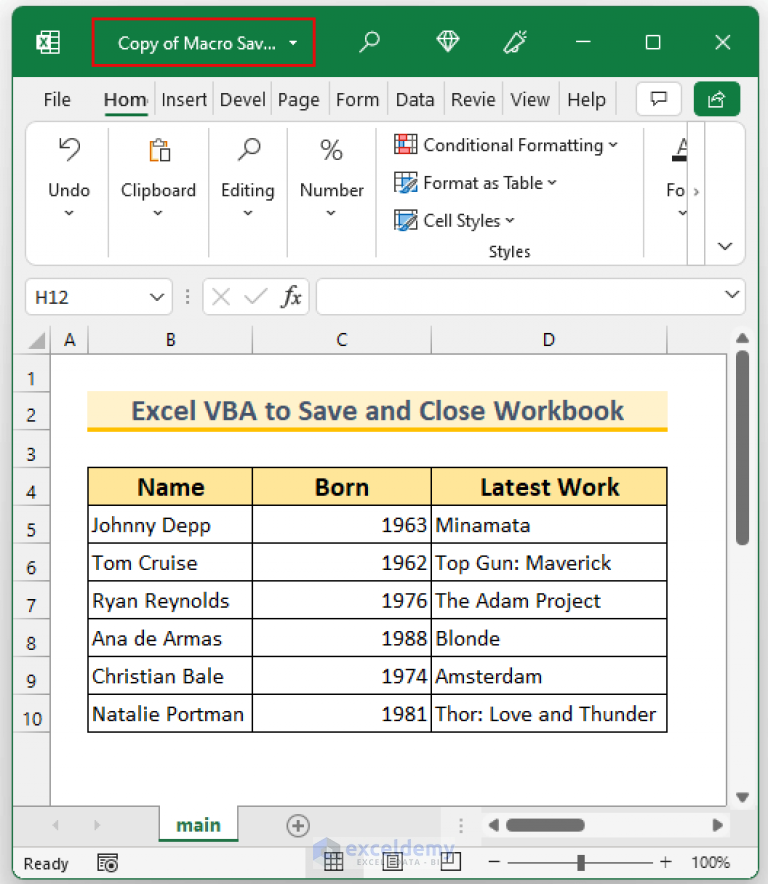
The Close Workbooks VBA method provides multiple ways to close workbooks, each catering to specific scenarios:
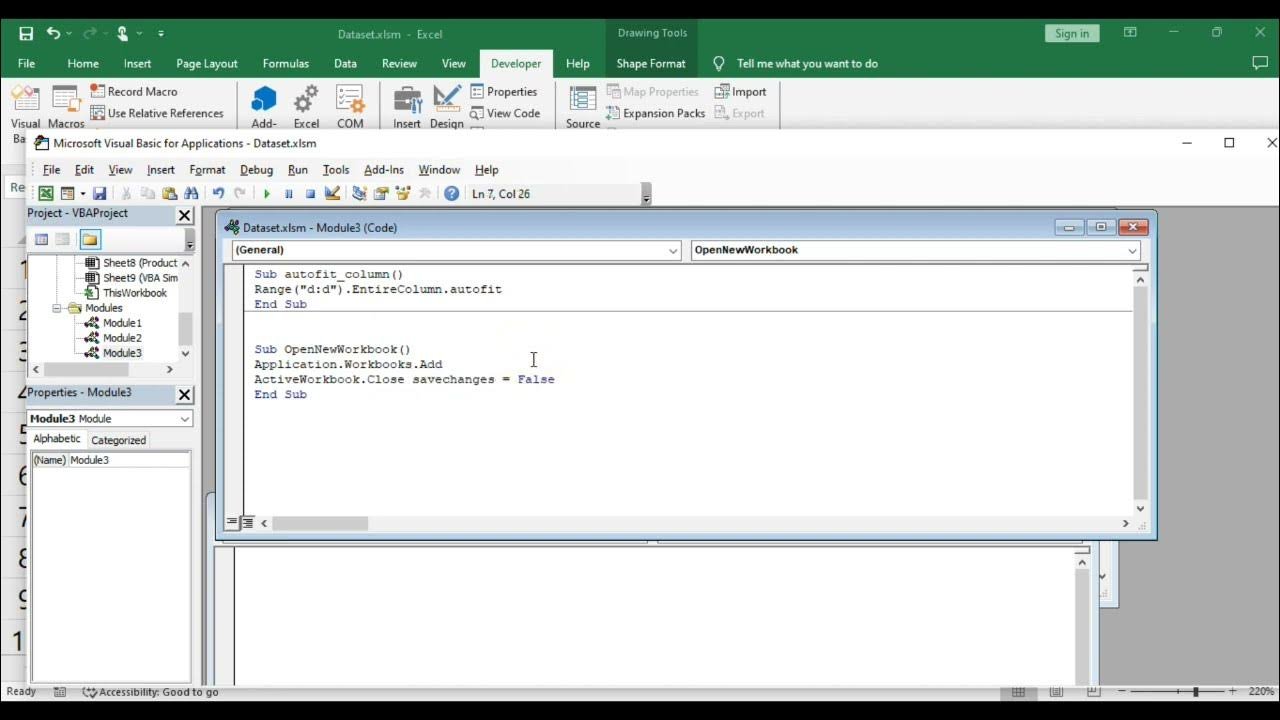
- Saving Changes: Use the
SaveChangesargument to specify whether you want to save changes before closing. For example,Workbooks("Book1").Close SaveChanges:=Trueensures changes are saved. - Discarding Changes: To close without saving, set
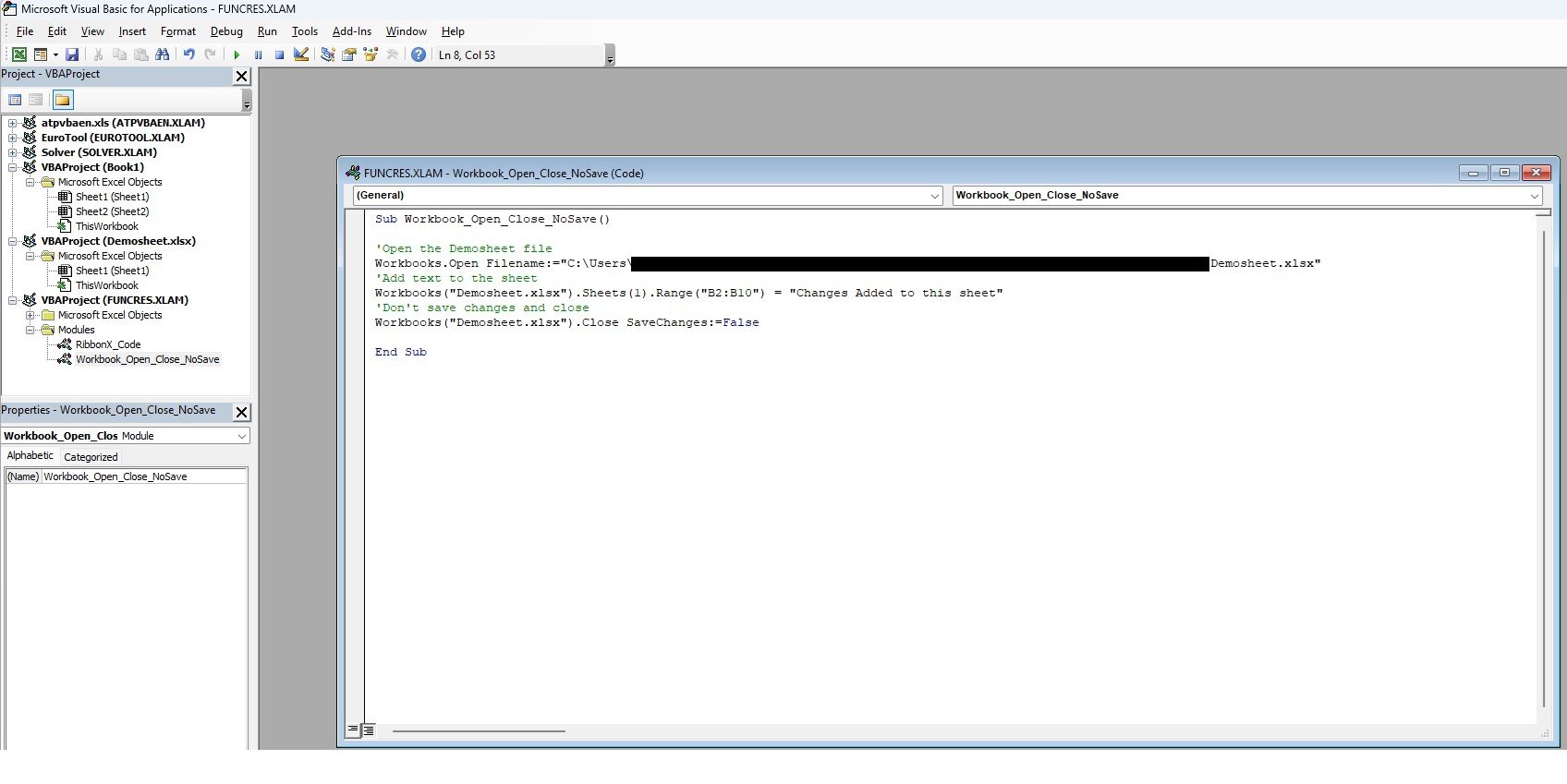
SaveChangestoFalse. This is useful when you want to discard unsaved work. - Prompting the User: By default, VBA prompts users to save changes. You can customize this behavior using the
Promptargument. Set it toTrueto display the prompt, orFalseto suppress it. - Closing All Open Workbooks: The
Workbooks.Closemethod can be used to close all open workbooks at once, providing a quick way to exit Excel.
Running Auto_Close Macros
It's important to note that closing a workbook from Visual Basic does not execute any Auto_Close macros within that workbook. To ensure these macros run, use the RunAutoMacros method. This allows you to perform any necessary cleanup tasks before closing.
Syntax and How to Use
The Close Workbooks VBA method has a straightforward syntax:

Workbook.Close(SaveChanges, Filename, RouteWorkbook, RouteWorkbookName)
SaveChanges: Specifies whether to save changes before closing.Filename: Optional argument to specify a new filename.RouteWorkbook: Routes the workbook to a different location.RouteWorkbookName: Provides a new name for the routed workbook.
To utilize this method, follow these steps:
- Open the VBA editor by pressing
Alt + F11. - Insert a new module or select an existing one.
- Write your code, ensuring proper indentation.
- Run the code by pressing
F5or using the Run button.
Example Code Snippet
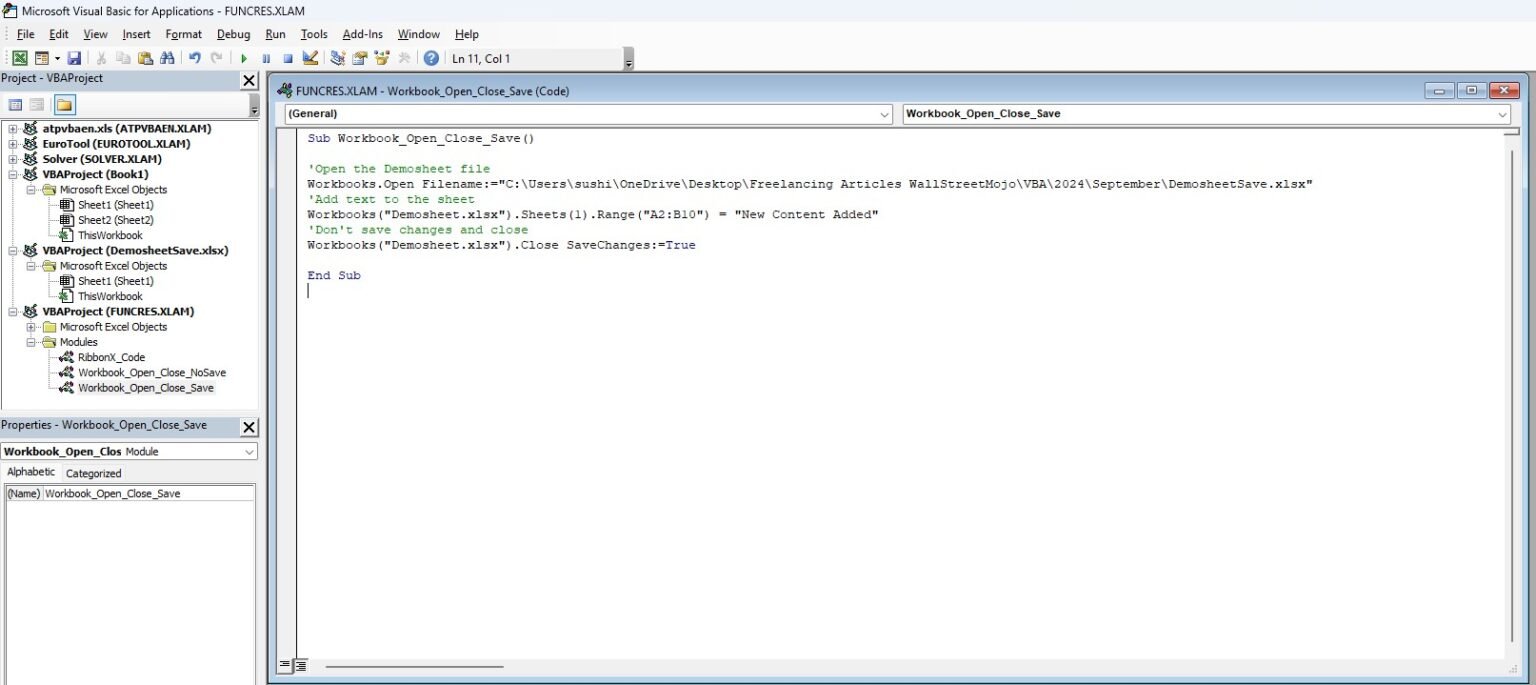
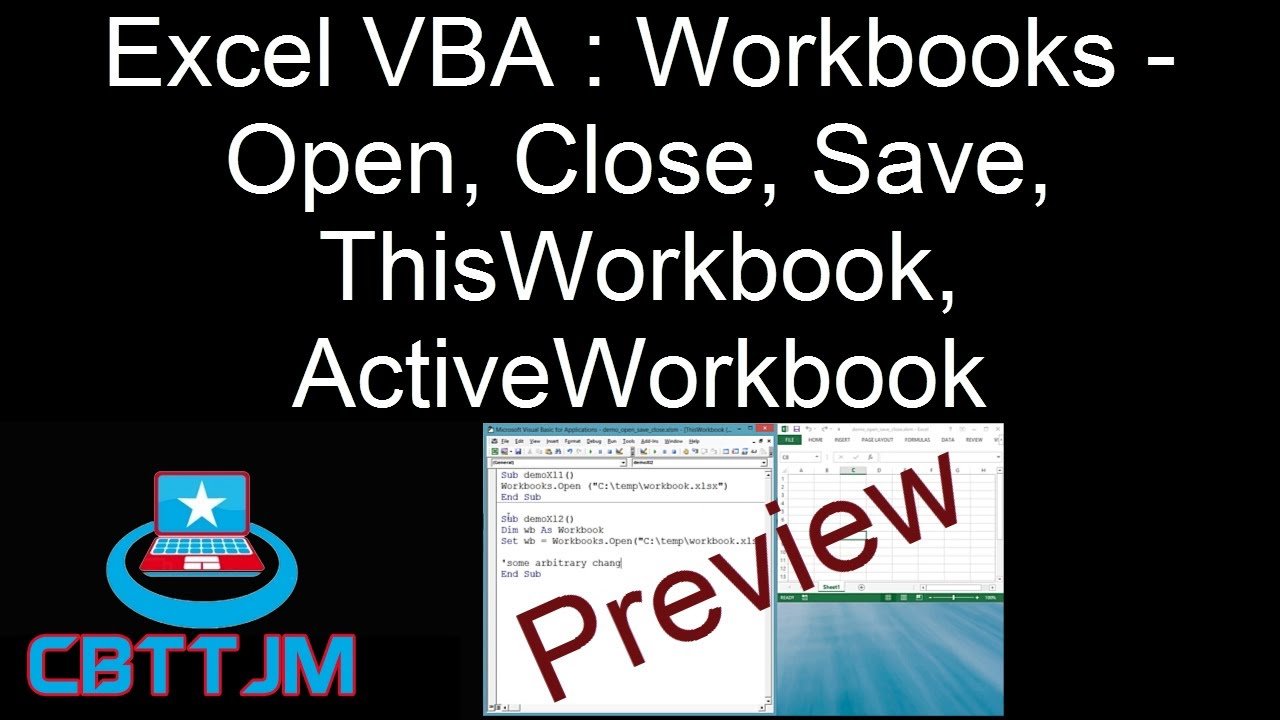
Here's a simple example of using the Close Workbooks VBA method:
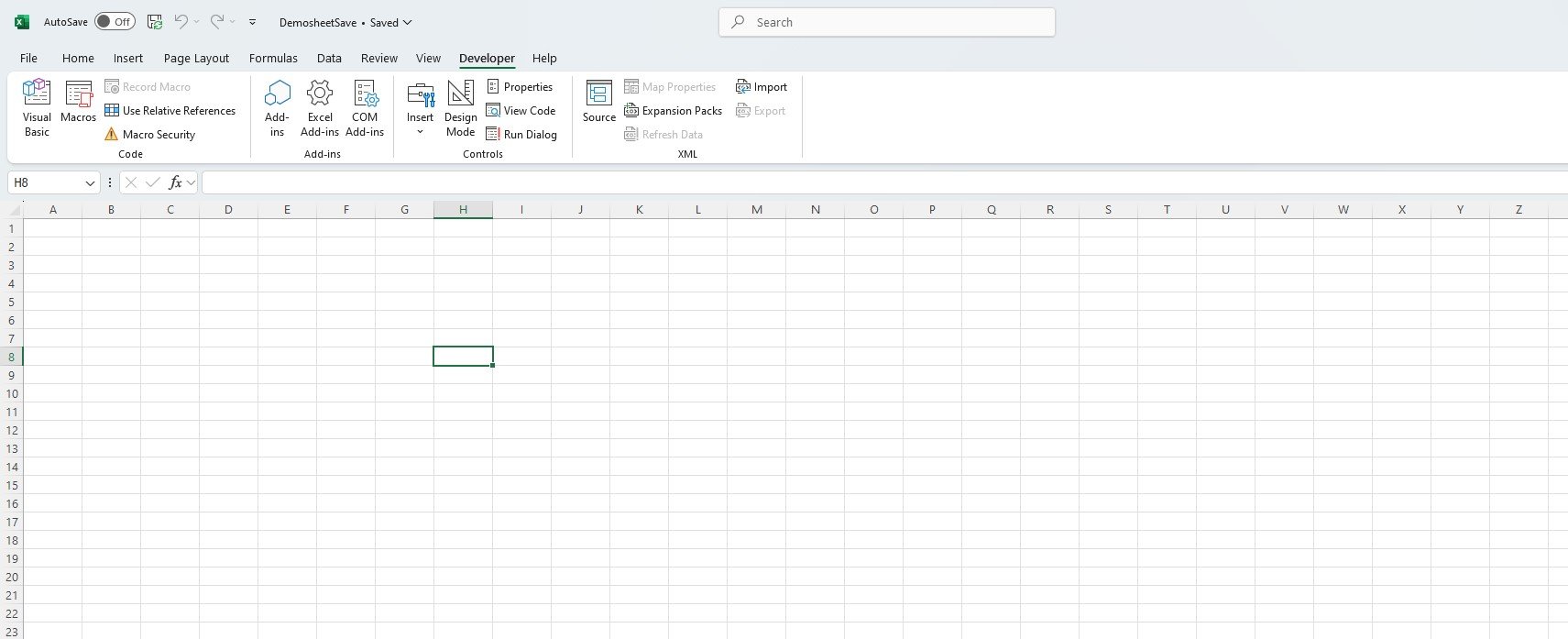
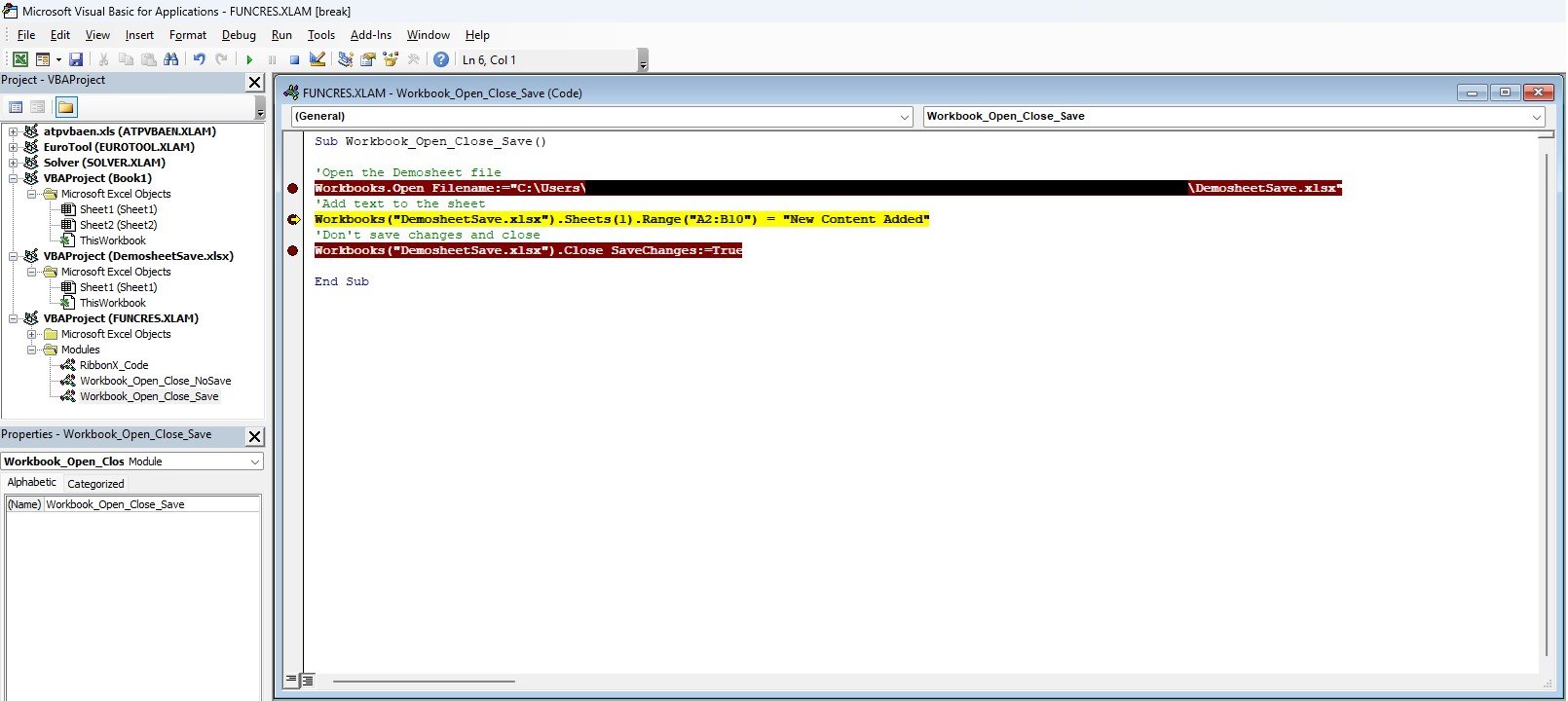
Sub CloseWorkbook()
    Workbooks("Book1").Close SaveChanges:=True
    ' This will save changes and close the workbook named "Book1".
End Sub
Further Resources and Related Topics
For more advanced techniques and use cases, explore these resources:
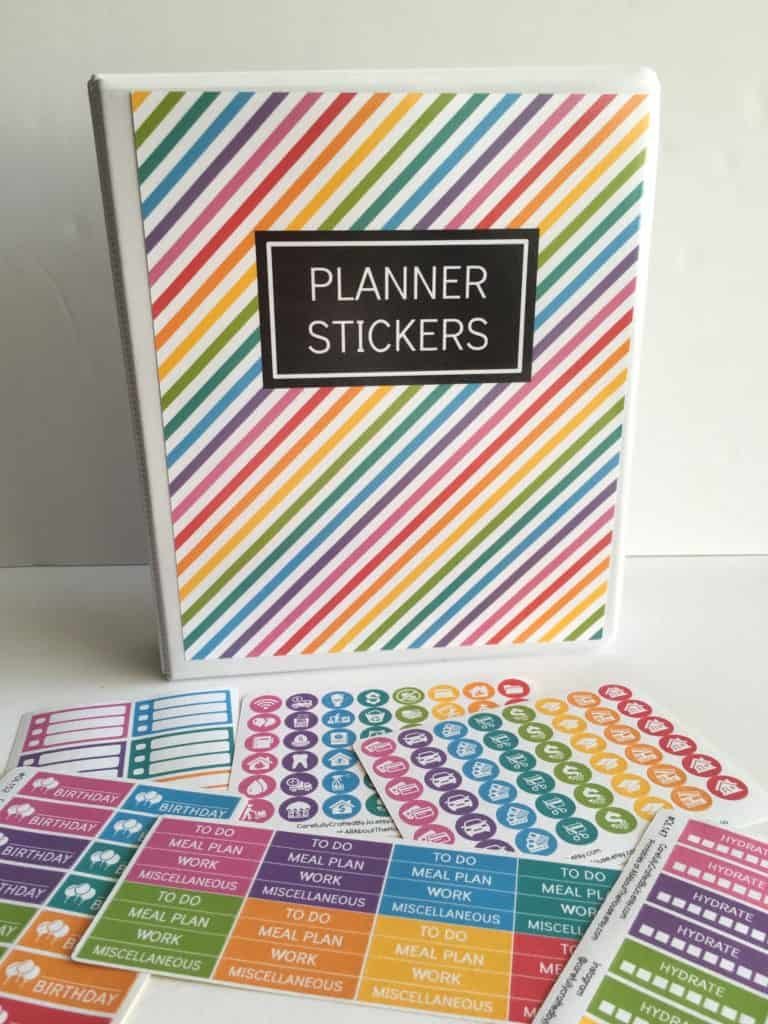
- How to Create Planner Inserts in Word: Learn how to design custom planner inserts.
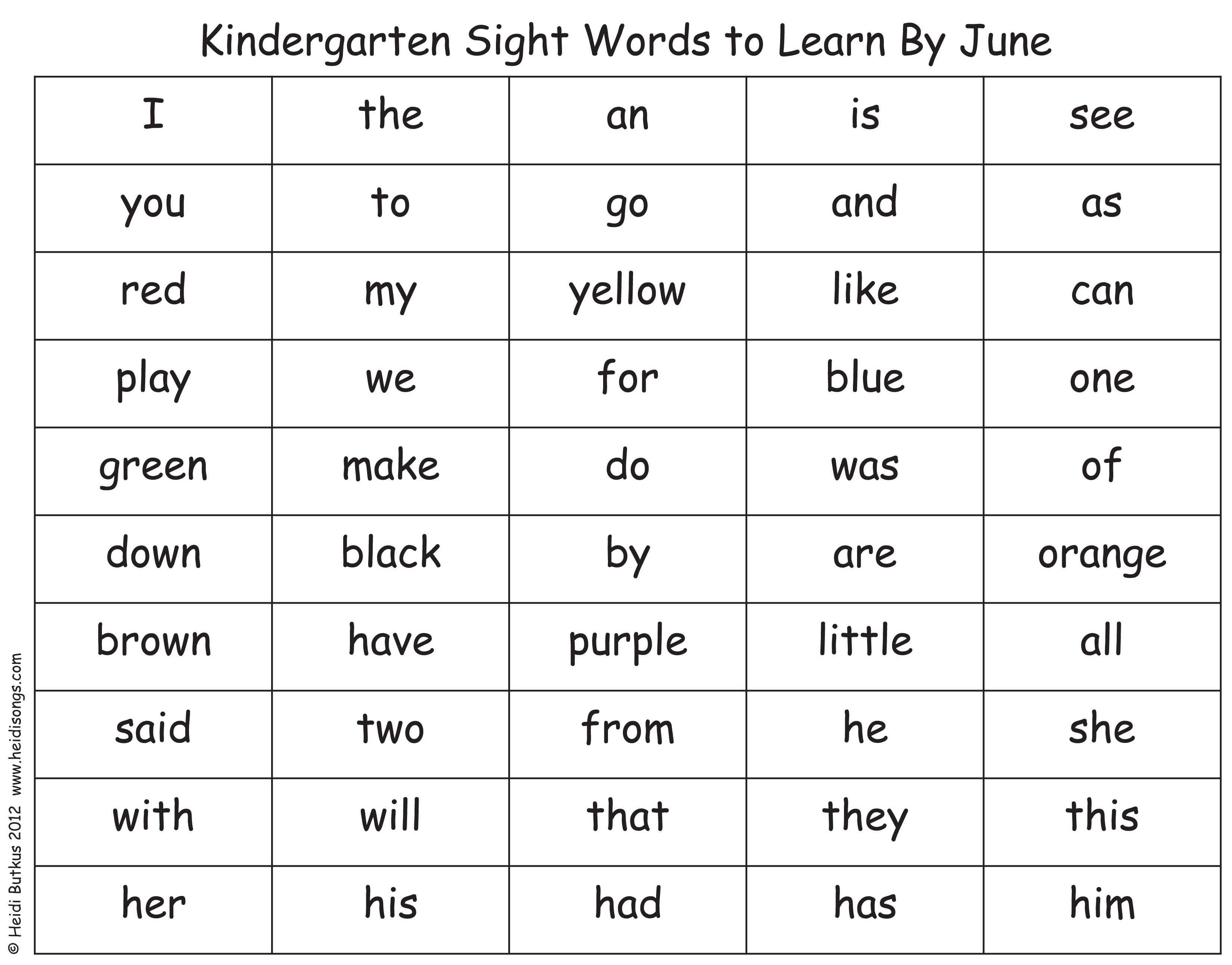
- Math Workbooks for Kindergarten Free: Discover free resources for early math education.
- Planner Inserts DIY: Get creative with DIY planner inserts.
- Flashcards Jobs and Professions Sheet: Create educational flashcards.
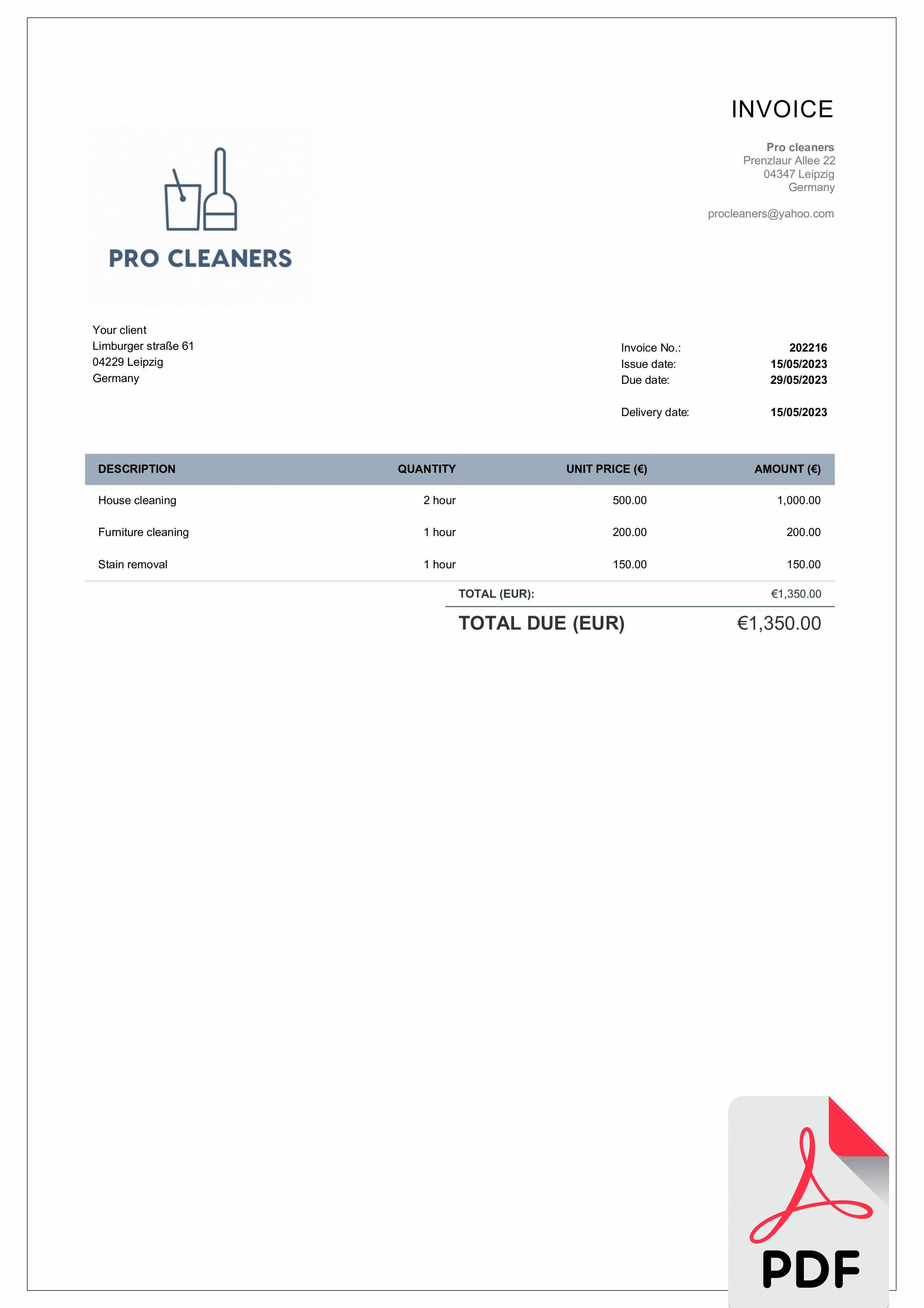
- Invoice Microsoft Word Template: Generate professional invoices.
Remember, mastering Close Workbooks VBA can greatly enhance your Excel automation skills, offering precise control over workbook management.